How do I change my Tesla's lock sound from my iPhone?
The car plays a WAV file named LockChime.wav from the top level of its USB drive, once you set Toybox → Boombox → Lock Sound to USB. Lock Chimes, from Faraday Soft, does the file part on your iPhone: make or pick a sound, plug the drive into the phone, and the app writes the file and checks it landed. It works with Teslas that have the external speaker.
Step by step
Check your car first. It needs the external speaker: Model 3 built from late 2019, all Model Y, Model S and X from 2021, and Cybertruck. If Toybox → Boombox exists on your screen, you're set.
- Make a sound. In Lock Chimes, record anything, pull the audio out of a video in Photos, open a file, or find a free one in the Find Sounds browser inside the app.
- Trim it. Keep the best 5 seconds, then boost, fade and name it.
- Plug in the drive. Take the car's USB drive out of the glovebox port and plug it into your phone (USB-C, or Lightning with a camera adapter on older iPhones).
- Tap Lock Chime and pick the drive when the file picker opens. The app writes LockChime.wav at the top level of the drive, forces it onto the drive, and reads it back to confirm.
- Switch it on in the car. Put the drive back in the glovebox. On the car's screen, go to Toybox → Boombox → Lock Sound → USB.
- Lock the car from outside. That's your sound.
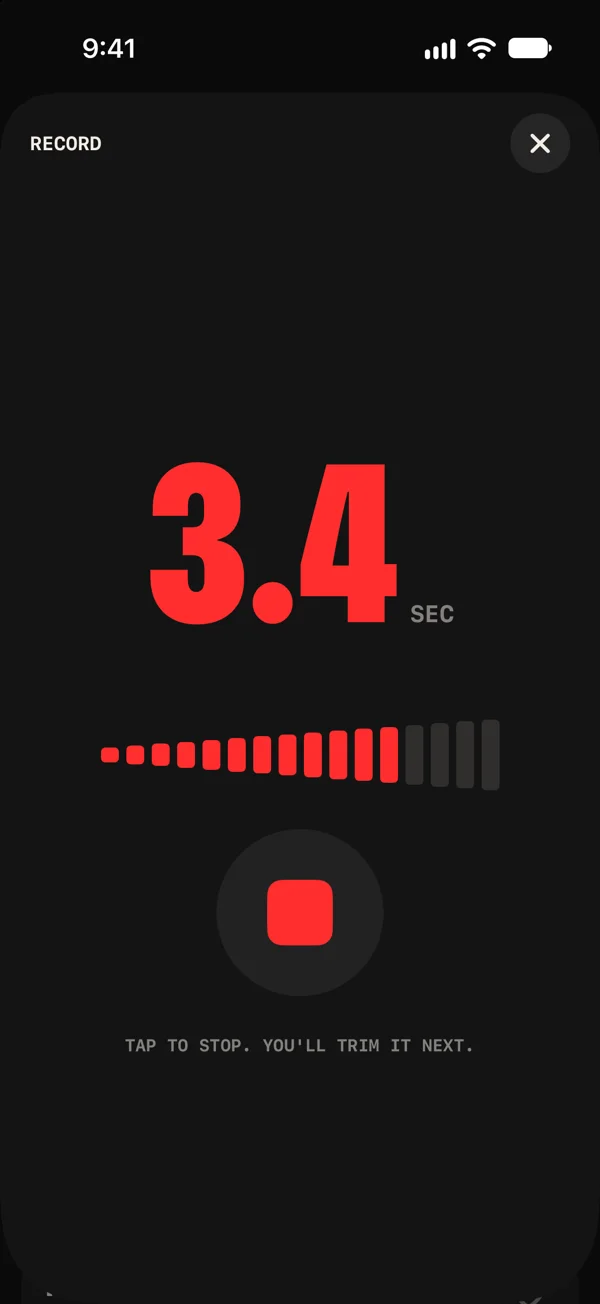
Recording a sound in Lock Chimes
What to check if the car ignores your sound
These are the things Faraday Soft learned on a real car. They apply whether you use the app or copy the file by hand.
- The name and place. The file must be a WAV named exactly LockChime.wav at the top level of the drive, not inside a folder. Some guides say Boombox/LockChime.wav. On our test car that file was ignored.
- The setting. Toybox → Boombox → Lock Sound must be set to USB.
- Length and size. The car plays up to 5 seconds for the lock chime and wants the file under 1 MB.
- The drive format. iOS shows USB drives in the Files app under Locations. If it isn't there, the drive is usually NTFS-formatted (use exFAT or FAT32) or needs more power than the phone's port gives (use a powered hub).
- The sound itself. Use sounds you have the right to use. Sites with free sounds state their own terms.
Sites you open in its sound browser, and links you paste. There is no account, no analytics and no Faraday Soft server. Your sounds stay on your phone and on your USB drive. See the Lock Chimes privacy policy.
Questions
Which Teslas does this work with?
Teslas with the external speaker: Model 3 built from late 2019, all Model Y, Model S and X from 2021, and Cybertruck. If Toybox → Boombox exists on your screen, you're set.
Do I need a computer?
No. Lock Chimes makes the sound and installs it to the car's USB drive from your iPhone or iPad.
How long can the lock sound be?
The car plays up to 5 seconds for the lock chime and wants the file under 1 MB. The app trims and converts the sound so you don't have to.
What does it cost?
Making and installing your own lock chime is free. Pro is $4.99 once, with no subscription, and adds all 5 Boombox slots, unlimited saved sounds and favorites, all four looks, and install history and backups.
Is Lock Chimes made by Tesla?
No. Lock Chimes is not affiliated with, endorsed by, or connected to Tesla, Inc.
Get Lock Chimes.
Not affiliated with Tesla, Inc. Full setup details are in the Lock Chimes help.
Dictate on a Mac without sending audio to the cloud
Talk and have the words typed at your cursor, with speech recognition running on the Mac itself.
Voice · Mac ·
Hide private details in a Mac screenshot before sharing it
Cover names, emails, card numbers and keys in a screenshot, without the image leaving your Mac.
Snapshot · Mac ·