How do I see every device on my Wi-Fi from my iPhone?
Use a network scanner that checks the local network your iPhone is joined to. Recon, from Faraday Soft, lists every device it finds on your Wi-Fi, works out what each one is (router, camera, printer, TV and more), and shows which ports it has open. Scan only networks you own or have permission to check.
Step by step
You need an iPhone or iPad joined to the Wi-Fi network you want to check.
- Install Recon from the App Store and open it on the iPhone or iPad that's on the network you want to check.
- Allow Local Network access when iOS asks. iOS requires it before any app can talk to other devices on your Wi-Fi. If you said no by mistake, turn it on in Settings under Privacy & Security, Local Network.
- Pick Fast or Thorough, then tap Scan. Fast mode takes a few seconds. Thorough mode checks more ports on every device. Results appear as they come in.
- Read the list. Each device gets a name and a type, with the clues that led to it. Rename devices, change icons or add notes so you know them next time.
- Tap a device to see its open ports, with the service and version, page titles and certificate details.
- Look at the whole network. The map groups devices under your router with live reply times, the services view lists every web page, SSH server, file share and printer, and the security grade sums up what the scan found.
- Save the scan. Next time, compare a new scan with the old one to see what changed. New devices get a NEW badge, and ones that left show as offline.
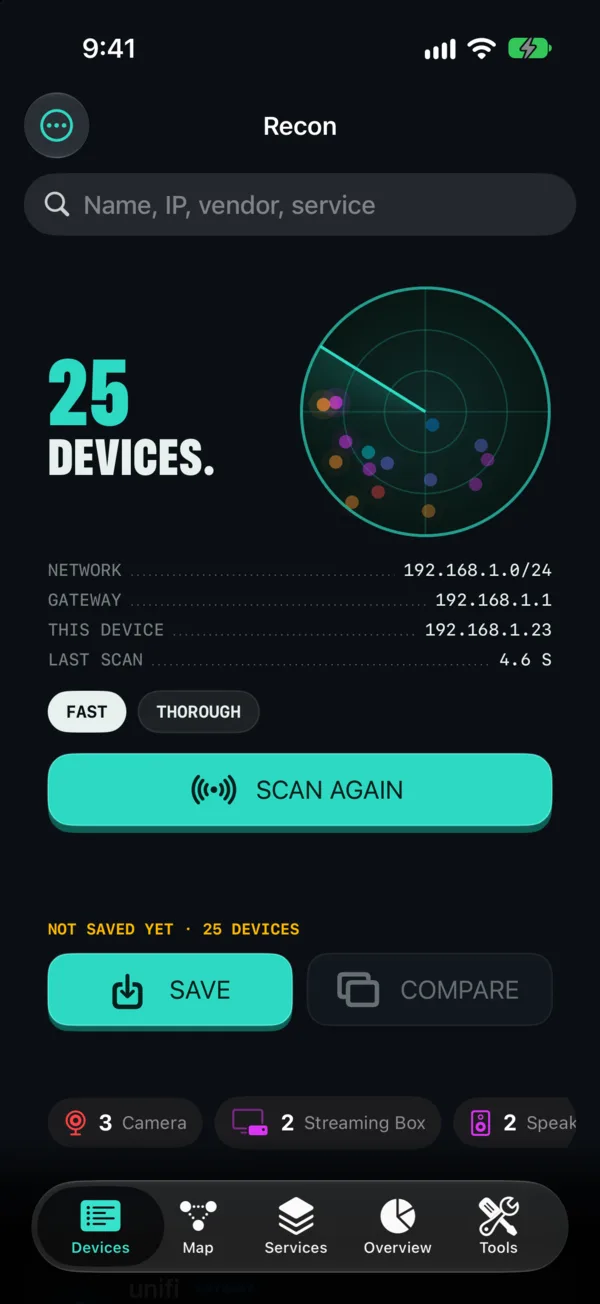
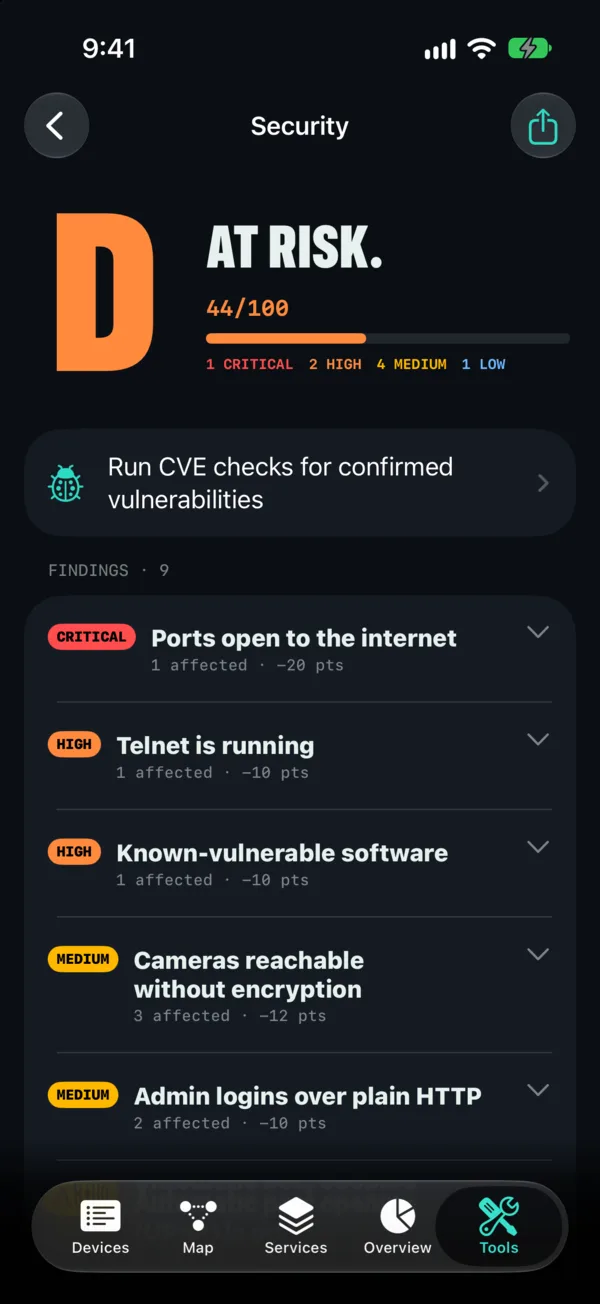
Sample network, not a real scan
What to look for once you can see the list
Most homes have more connected things than people remember: TVs, printers, cameras, speakers, storage, smart plugs. Each one is a small computer on your network. These checks are worth doing whichever tool you use, including your router's own device list.
- Devices you don't recognise. Match each one to something in your home. If you can't place one, find out what it is before you ignore it.
- Telnet left on. Telnet is an old way to log in to a device that sends everything in plain text. If something answers on it, look for a setting to turn it off.
- Router port forwards. A port forward opens a device to the internet. Recon's router exposure check lists the ones your router has opened. Remove any you don't use.
- Old software versions. A device that reports an old version is due for an update from its maker.
- Limits. The scan needs Wi-Fi and covers only the local network you're joined to. Tools like ping, DNS lookup and whois work on any connection.
Scan traffic to devices on the network you choose. Results stay on your phone. There is no Recon server, and Faraday Soft receives none of what a scan finds. Tools you choose to run, such as the public IP lookup, speed test and vulnerability check updates, reach the internet. The Recon privacy policy lists each one.
Questions
Which networks can I scan?
Networks you own or have permission to check. Recon scans only the local Wi-Fi network your device is connected to, and only when you tap Scan. The port scan tool can target a host you type in, so the same rule applies there.
Why does Recon ask for Local Network access?
iOS requires it before any app can talk to other devices on your Wi-Fi. Without it, Recon can't find anything. You can turn it on later in Settings under Privacy & Security, Local Network.
Does it work on cellular?
The scan needs Wi-Fi, since it looks at the devices on the network you're joined to. Tools like ping, DNS lookup and whois work on any connection.
Does a scan change anything on my devices?
A scan only looks: it checks which ports answer and reads what they say about themselves. The optional vulnerability checks skip anything tagged intrusive by default. Changes happen only if you log in to a device yourself through the browser or terminal.
Get Recon.
Recon works on iPhone, iPhone Duo and iPad. Questions: support@faradaysoft.com

Make a calendar event ring like an alarm on iPhone
Turn the meetings that matter into real alarms that ring through silent mode and Focus.
Klaxon · iPhone · iPad ·
Change your Tesla's lock sound from your iPhone
Make a lock sound, put it on the car's USB drive from your phone, and switch it on in Toybox.
Lock Chimes · iPhone · iPad ·